
08 — inbox & crm
One inbox.
One connected record.
One shared inbox for your team, with every conversation connected to the right member, prospect, company or event. Assign owners, add internal notes and keep the full context in one place.
 Live · app.tersos.io
Your own address
Staff connect their own mailbox, and mail goes out from their own address.
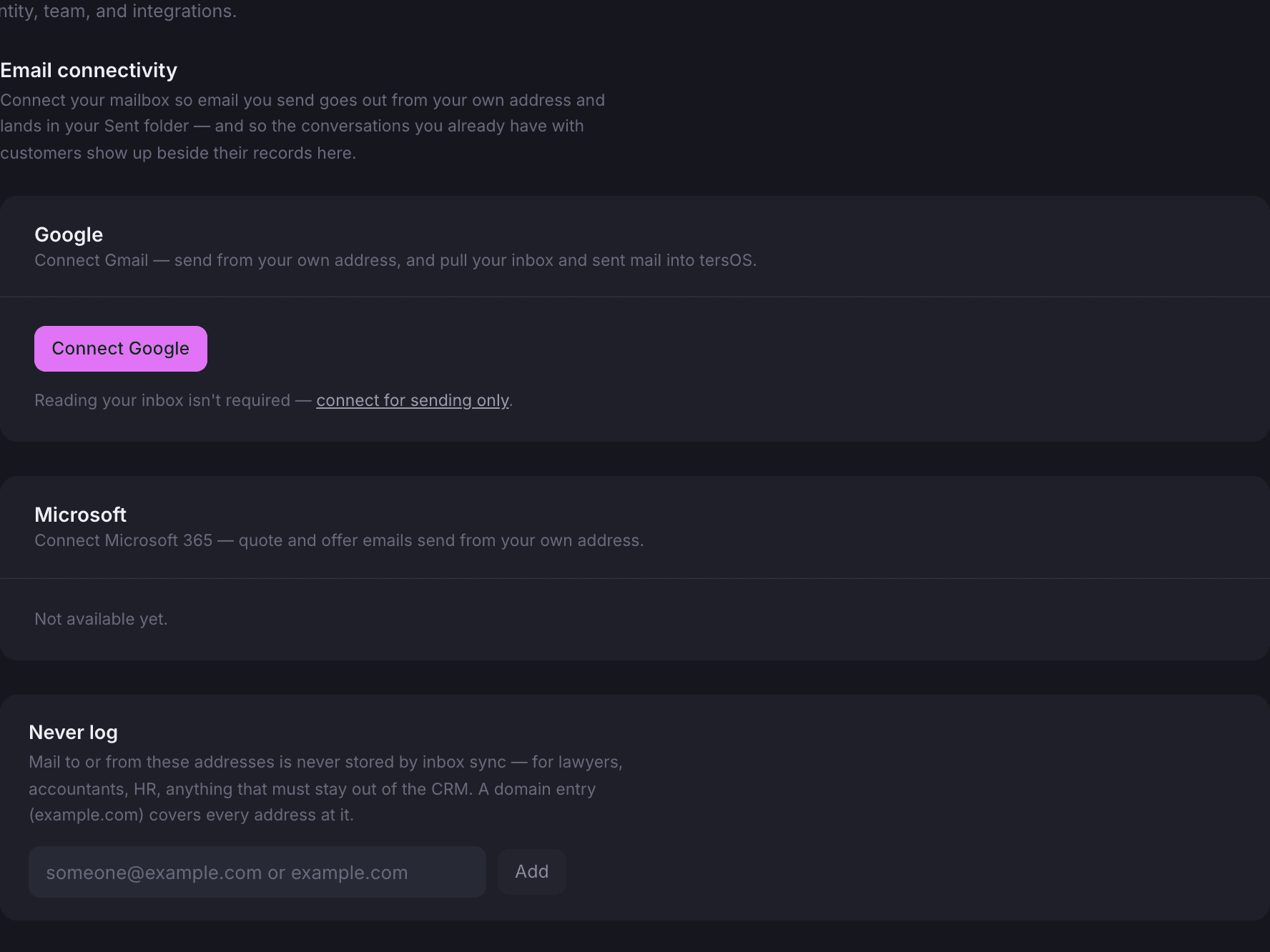
Each staff member connects their Gmail or Microsoft 365 account with a normal sign-in. Quotes and replies then go out from their own address and sit in their own Sent folder, and the mail they already exchange with a customer shows up beside that customer.
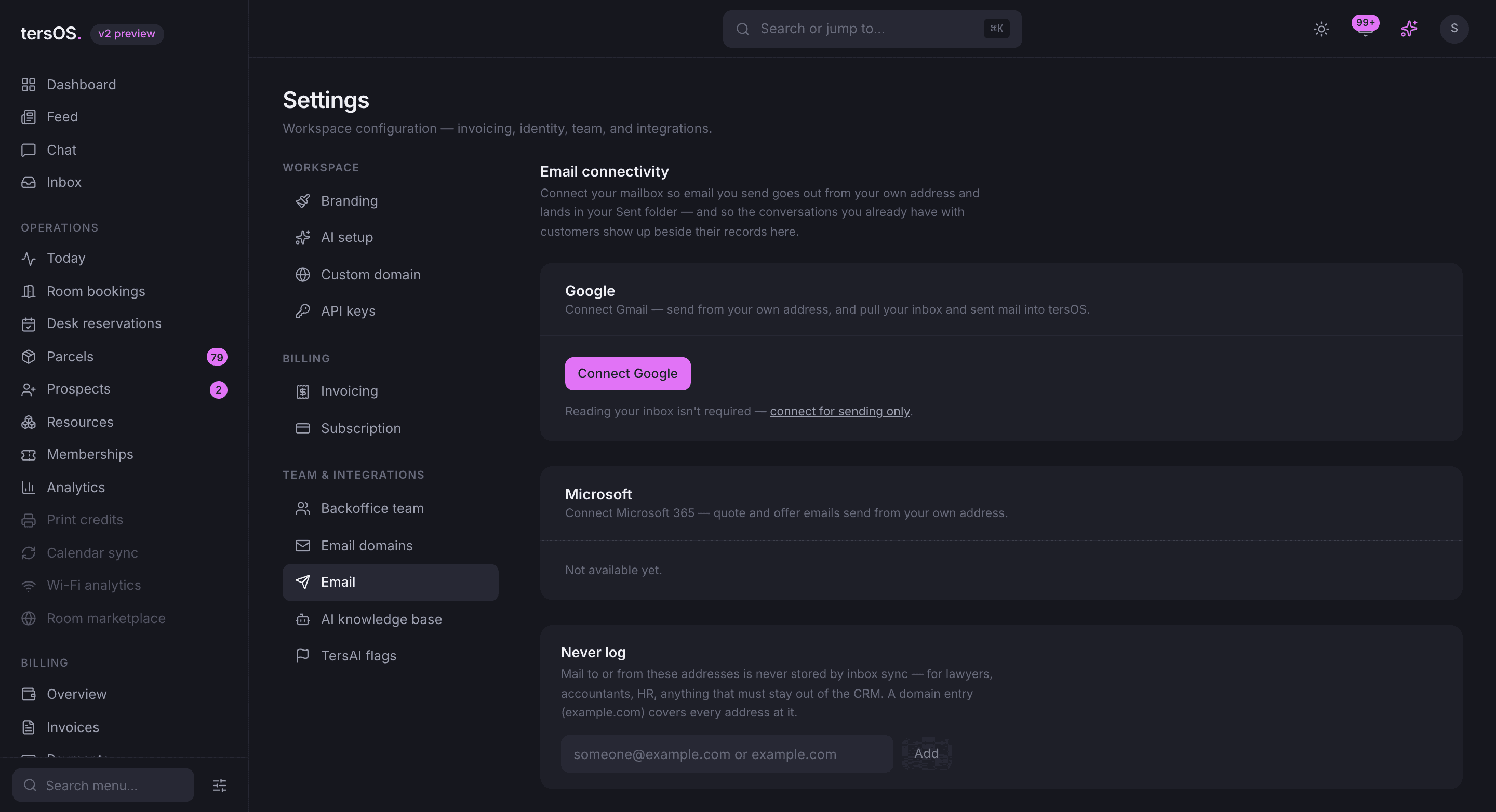
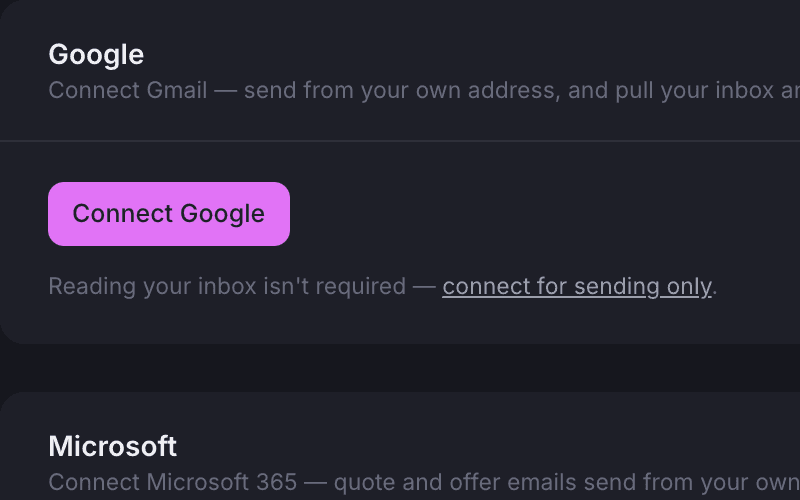
Sending only, if you prefer
Choose sending only and tersOS never reads your mail, but it still goes from your address.
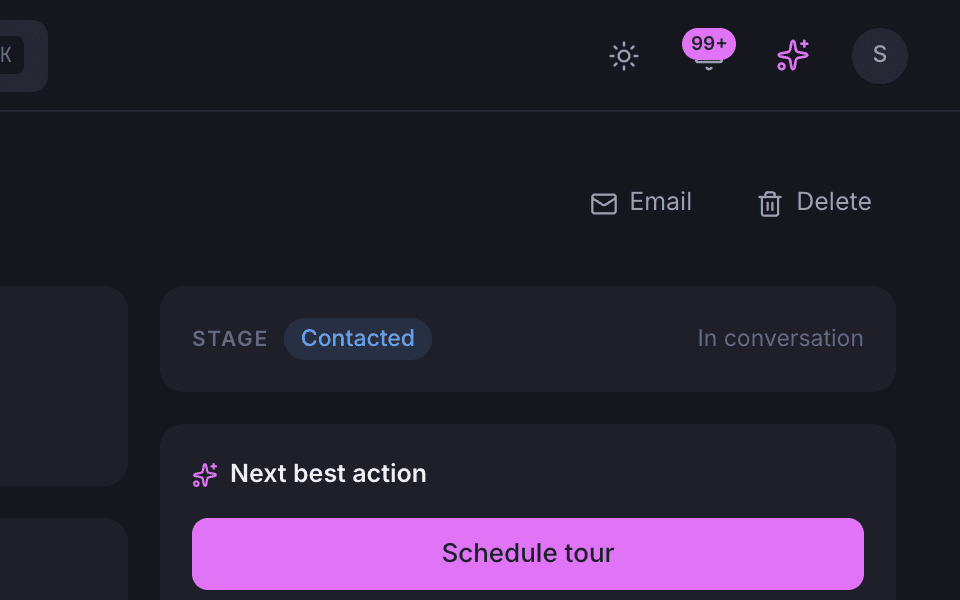
An Email button on every profile
Write to a member, prospect, client or event contact with their address filled in.
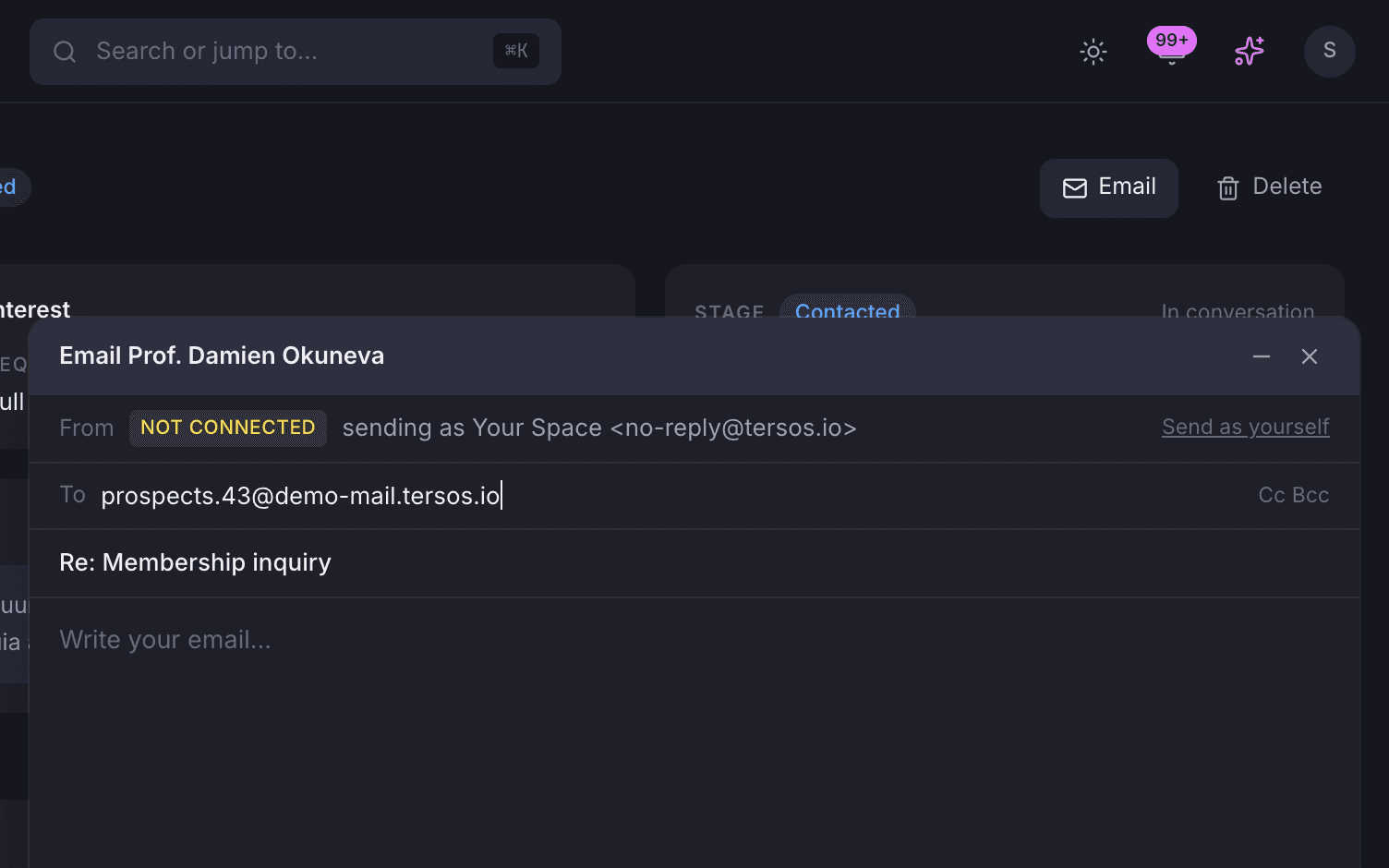
A broken mailbox never blocks a send
If a connected mailbox stops working, its owner is told and the mail still goes out.
Shared inbox
Mail is grouped into conversations, and each one belongs to the member, prospect or event it is about.
Every message is threaded into a conversation, including everything tersOS itself sent, so nothing is missing from the middle. A conversation can be handed to a colleague, opened and closed, given staff-only notes and linked to the member, prospect, company or event it is about.
Filters for who owns what.
Filter the list to unread, needs triage, mine, open or closed, so a colleague can pick up where the last one left off.
- Assign a conversation to a colleague, open it or close it
- Internal notes that only staff can see
- Link a conversation to a member, prospect, company or event
- Turn a thread into a prospect or an event enquiry in one click

Prospects
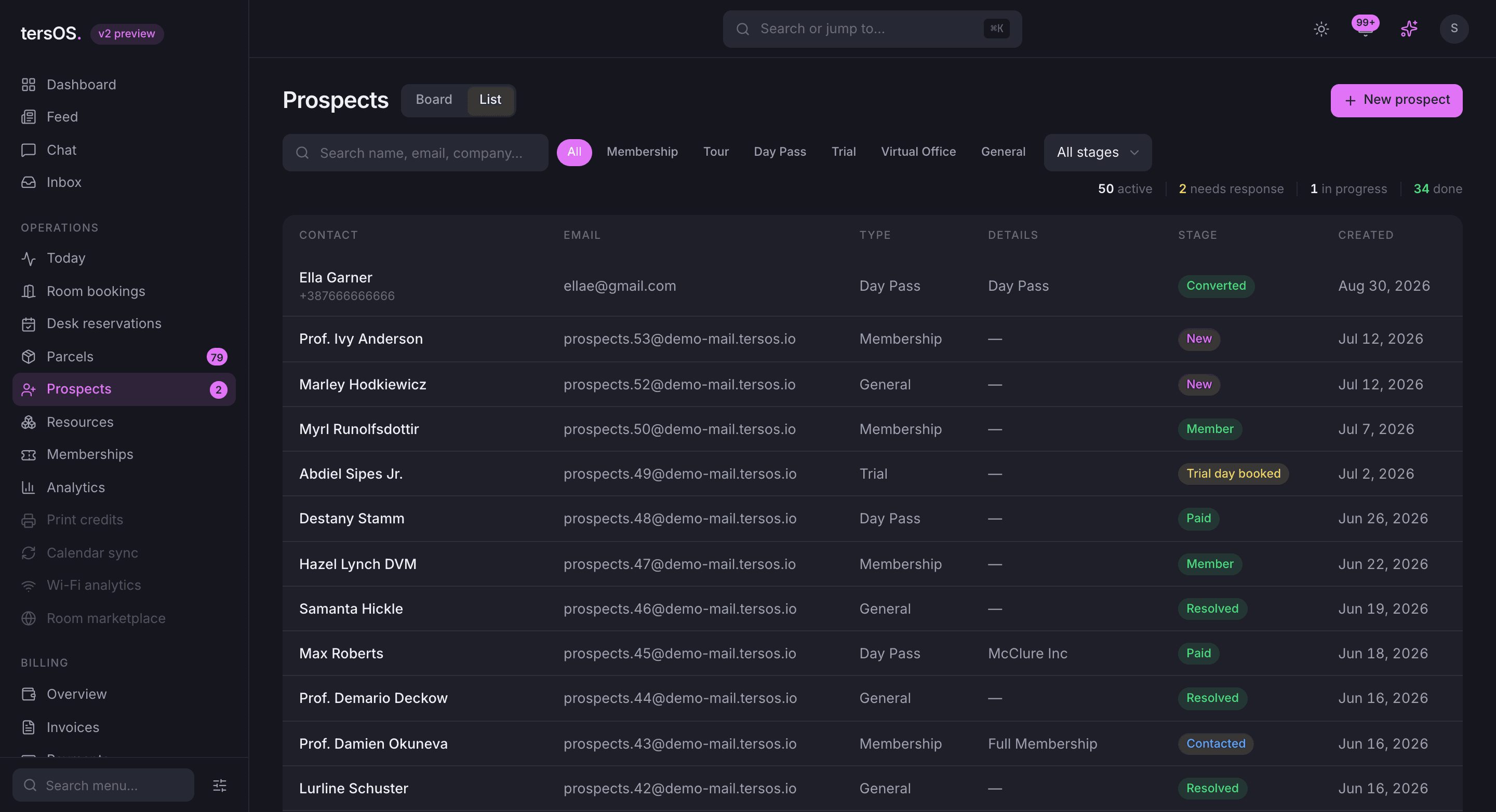
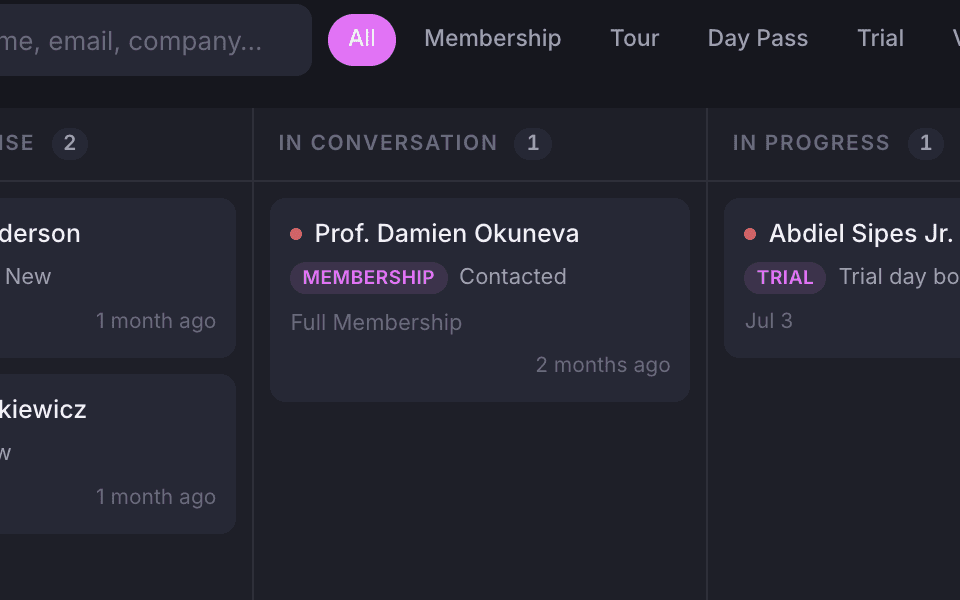
Every enquiry is a prospect on a board, filed by type.
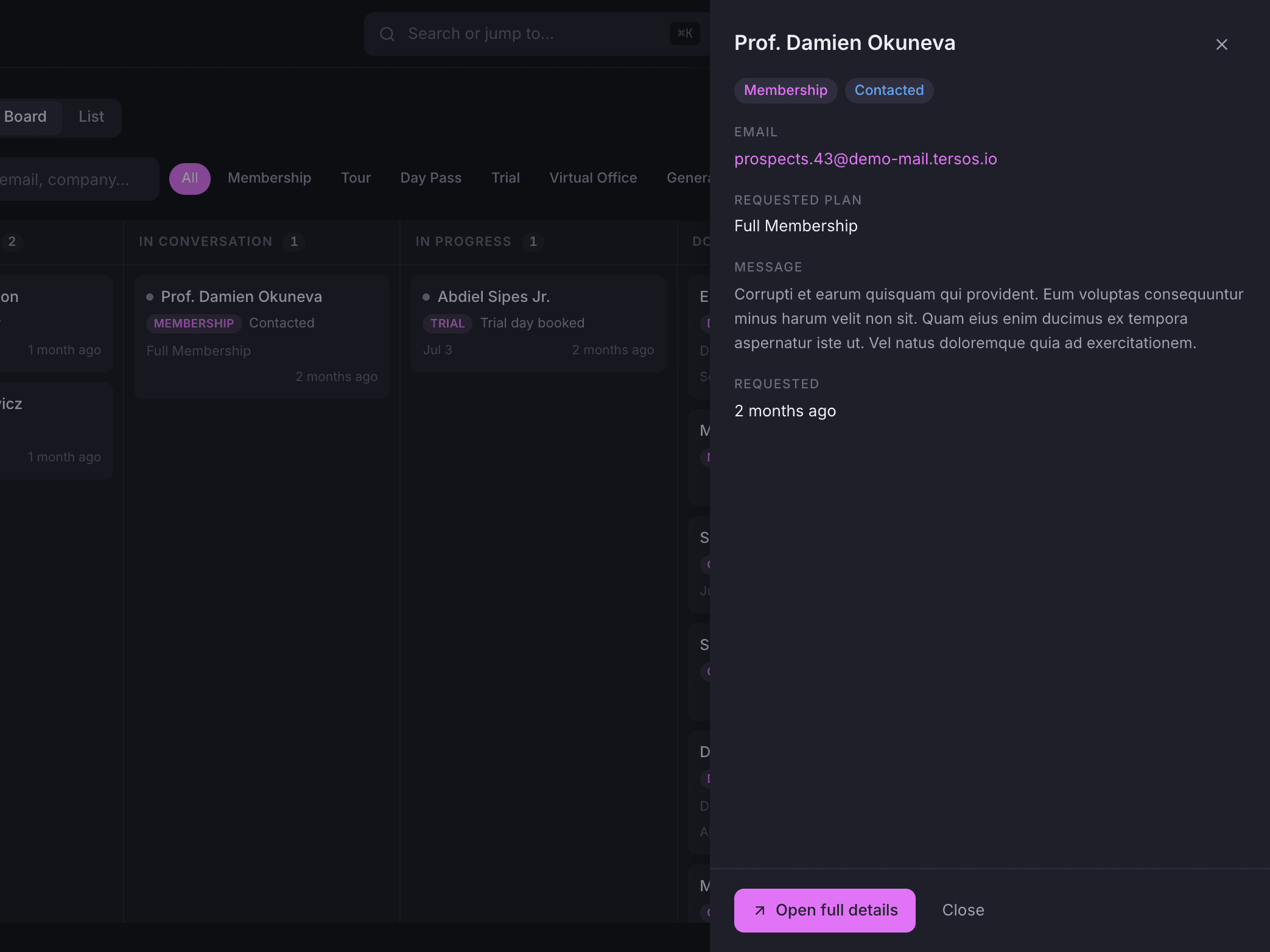
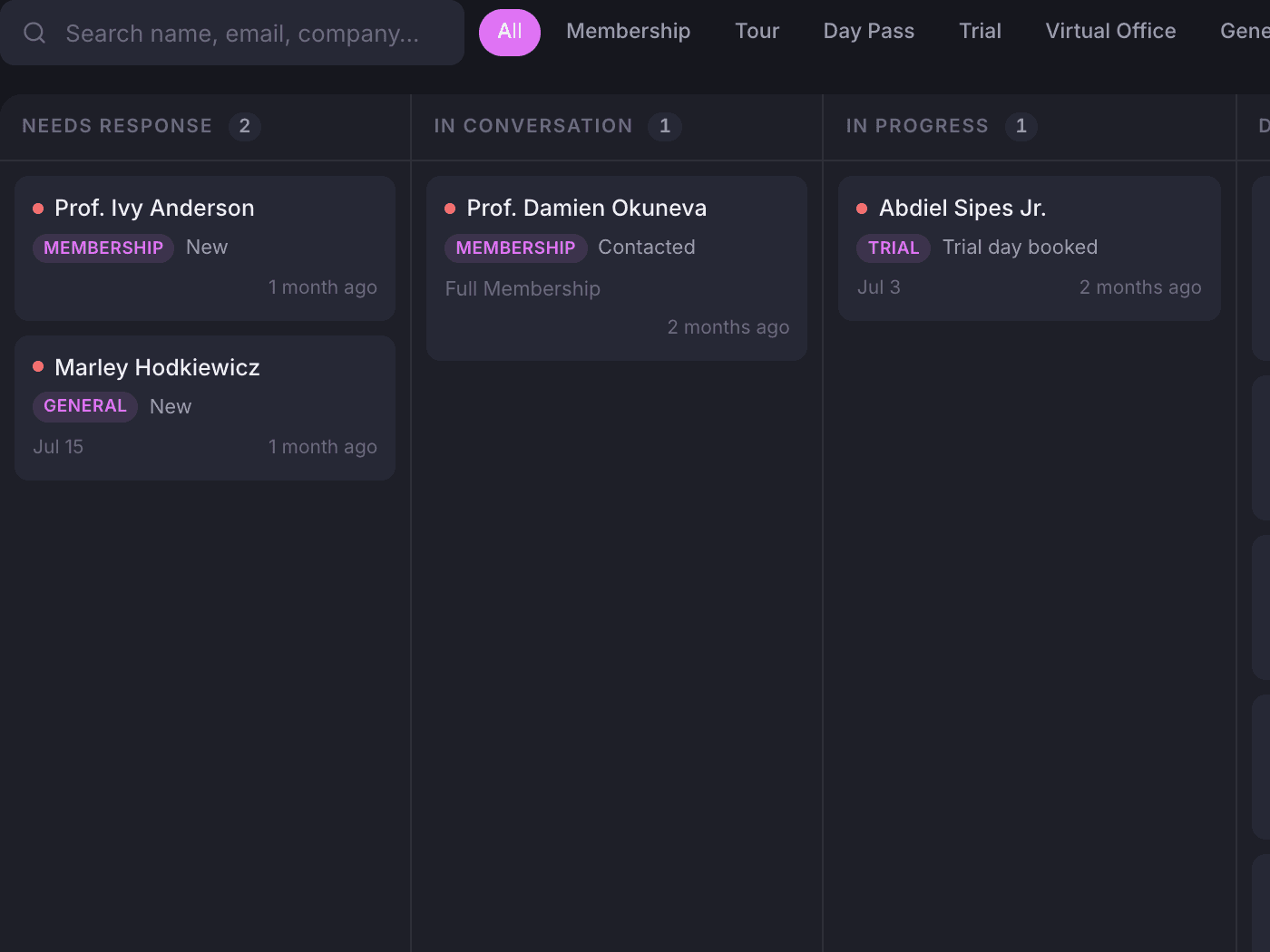
A request from the Public Hub, a lead captured by tersAI or a thread turned into a prospect all land on the same board. There are six prospect types, each with its own stages: membership, tour, day pass, trial, virtual office and general. Staff drag cards between stages, or switch to the list.
A card is a person and a stage
Name, type, stage and what they asked for, on a card you drag to the next stage.
Filter by type
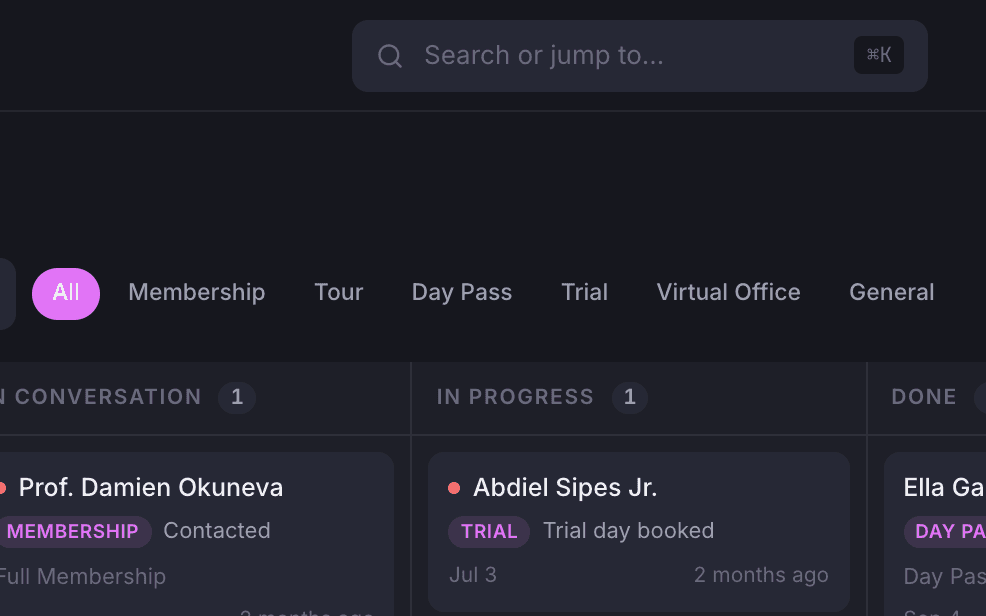
Show only membership, tour, day pass, trial, virtual office or general enquiries.
The counts above the board
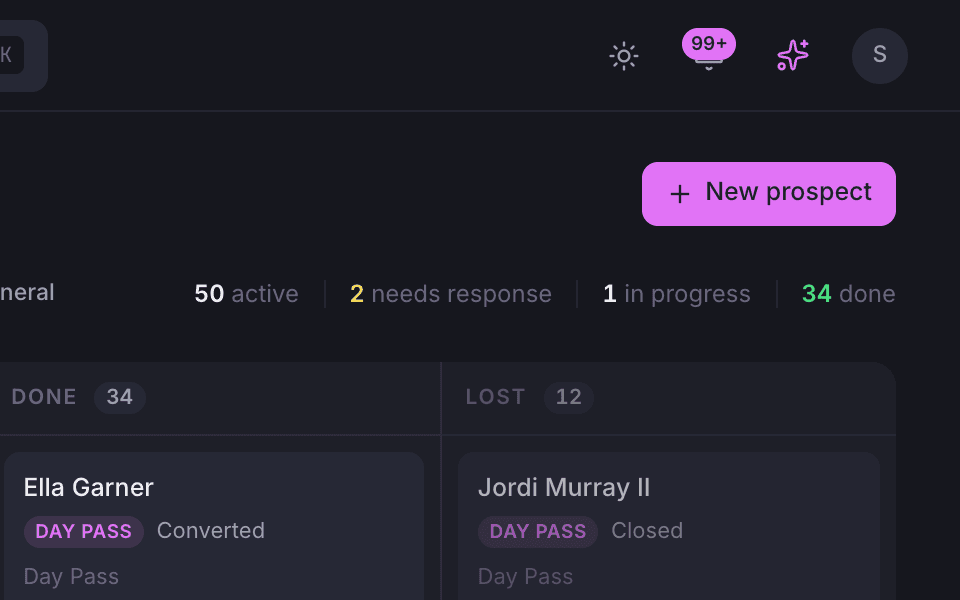
How many prospects are active, need a response, are in progress or done.
What to do next
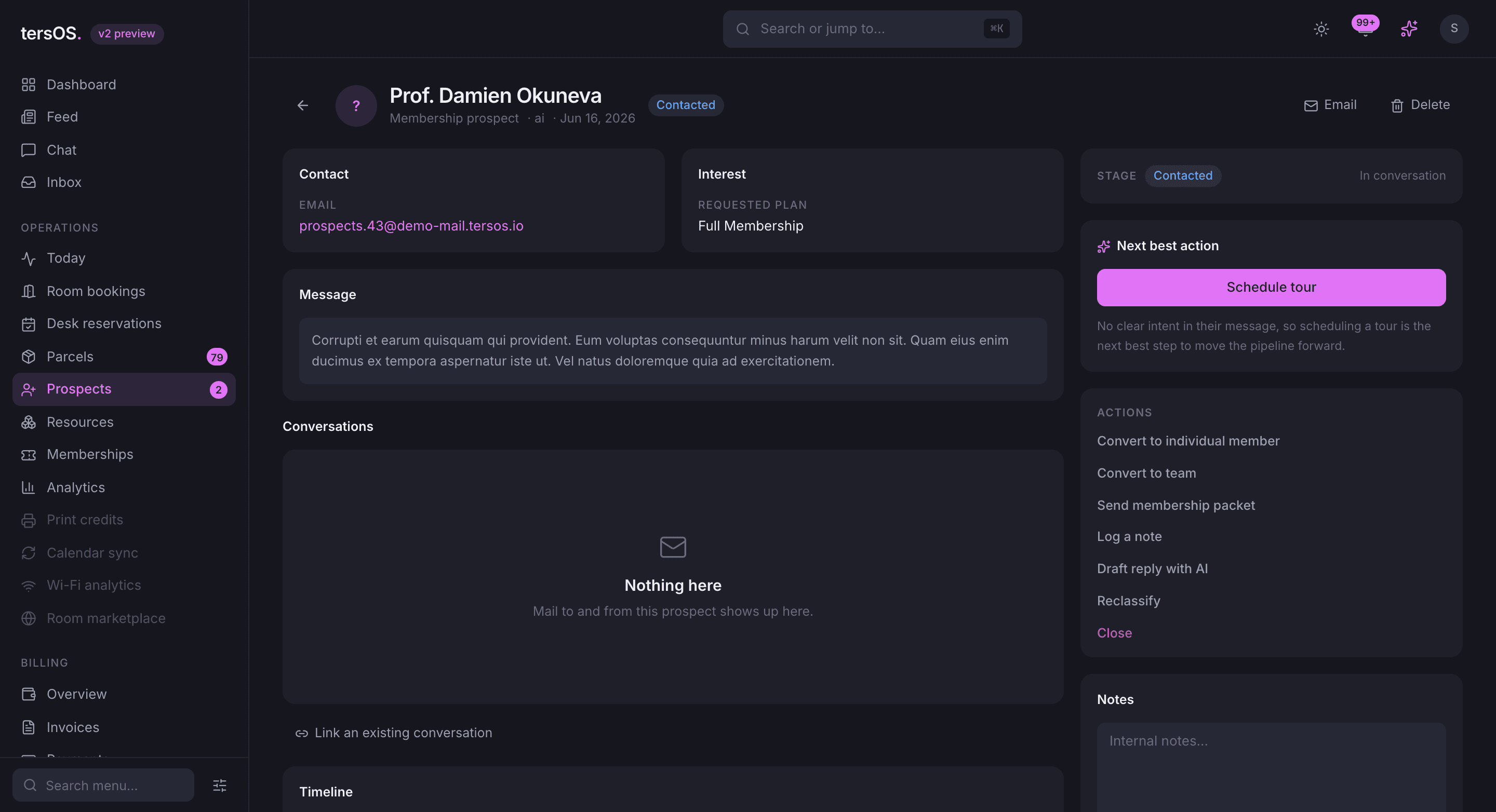
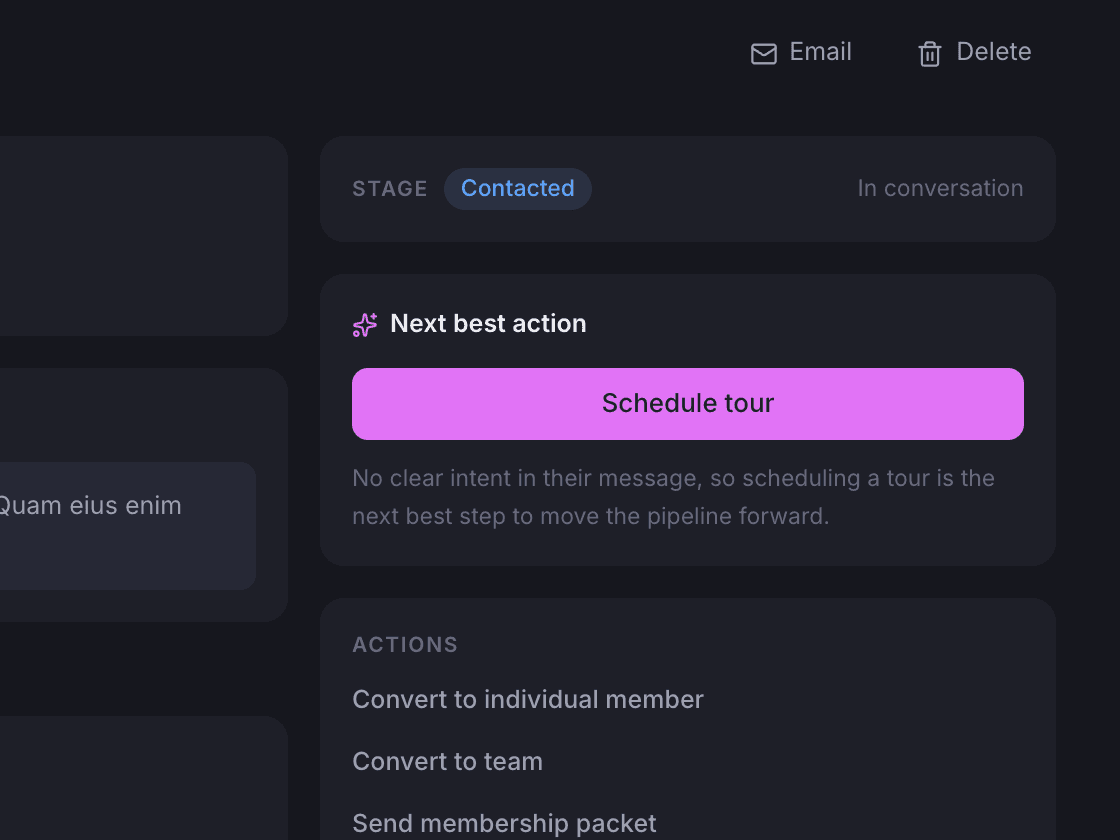
A prospect’s page says what to do next and offers only the actions that apply.
The page holds the contact, what they asked for, their message, the linked conversations and every stage change. tersOS suggests the next step for that prospect, and the action list only shows what applies right now: contacted, scheduled, arrived, completed, no-show, closed or reopen.
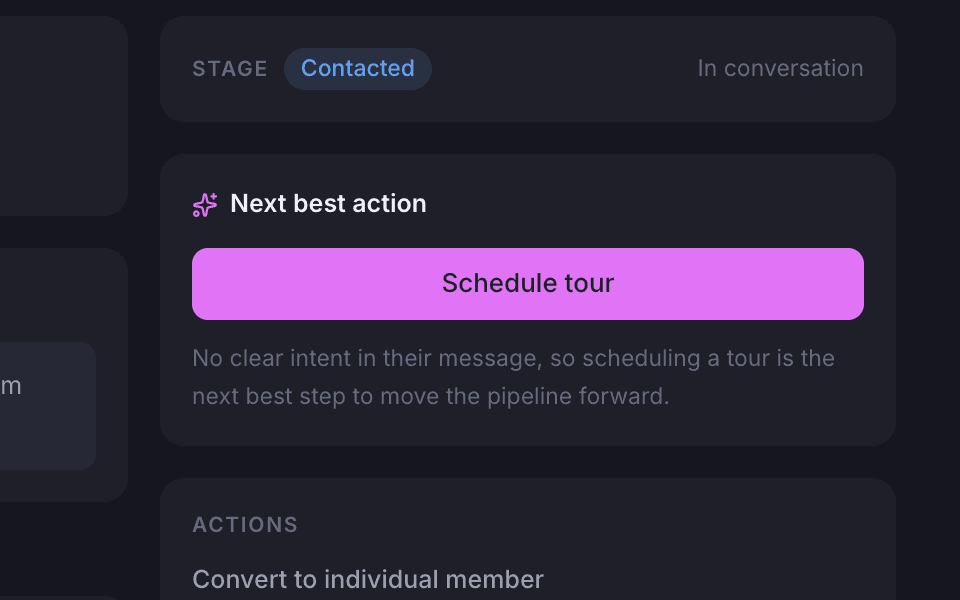
Next best action
A suggested next step, with the reason, based on the prospect’s type, stage and message.
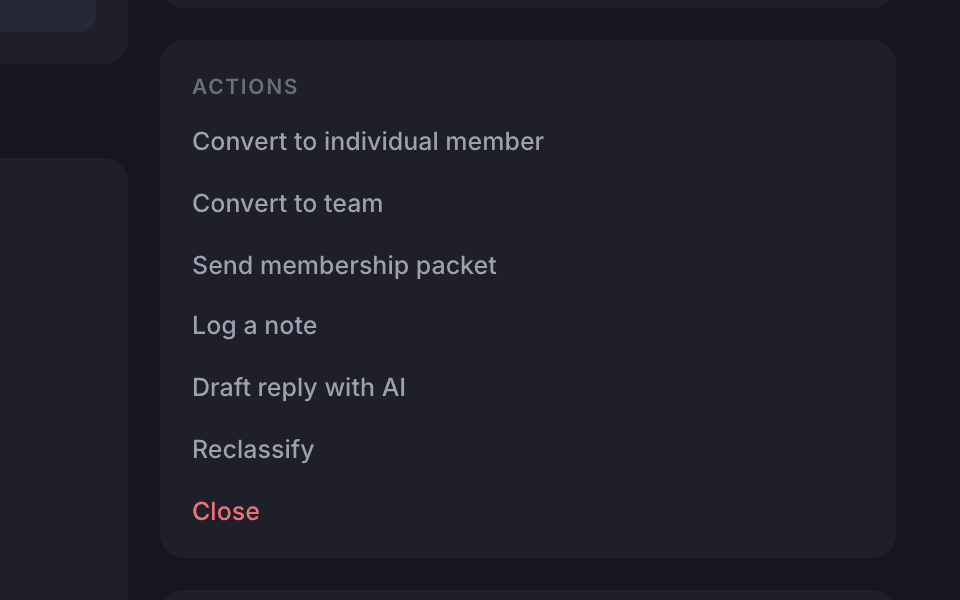
Convert in one step
Convert to a member, team, day pass or virtual office, and their sign-in details go out.
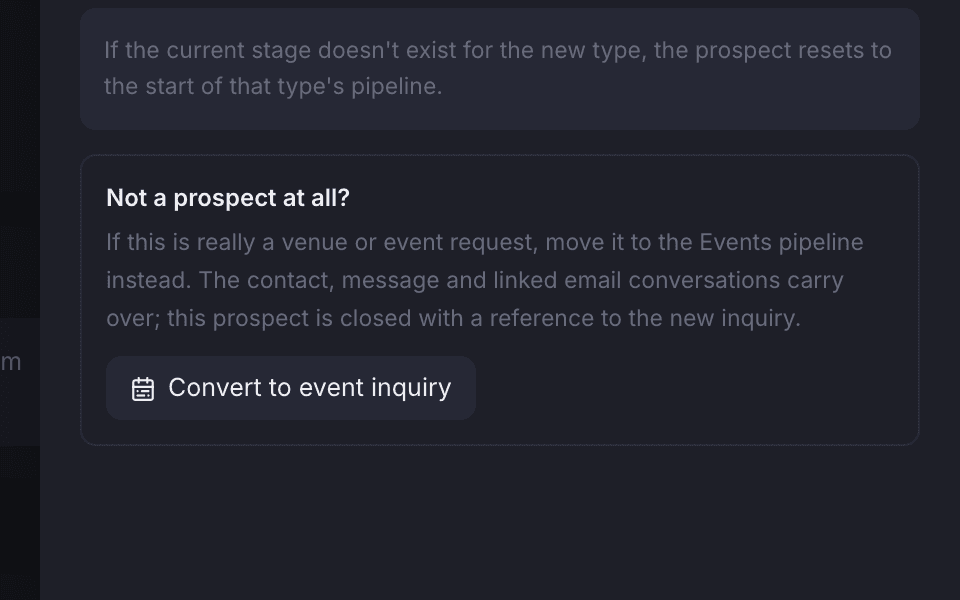
Reclassify, or move it to Events
Change a wrong type, or turn it into an event enquiry and its mail comes along.
In Gmail
The Gmail add-on shows who the sender is, next to the mail.
Staff who live in Gmail set up the add-on once with a one-time code. From then on the sidebar tells them who the sender is, summarises the thread or answers questions about it, drafts a reply, saves the mail as a note, creates a prospect from it or moves a prospect to the next stage.
The same prospect, wherever you open it.
Look up a sender and tersOS tells you whether they are a member, client, prospect or event enquiry, with their recent activity. This is the same prospect, opened from the board.
- Look up the sender
- Summarise or chat about the thread
- Draft a reply, save a note, create a prospect
- Move a prospect to the next stage
Privacy
Some mail must never enter the CRM, and that is a setting.
Put an address or a whole domain on the list tersOS must never keep, and mail with the lawyer, the accountant or HR never becomes a shared conversation. You can also stop tersOS reading a mailbox without disconnecting it: sending keeps working from your address while reading stops.
Mail that tersOS never keeps.
Add one address to keep out that person, or a whole domain to keep out everyone at that company.
- Mail with anyone on the list is never read or kept
- Stop tersOS reading a mailbox and keep sending from it
- Mailbox sign-in details are kept encrypted and never shown

Where it shows up
The same prospect, wherever you look.
An enquiry is the same prospect whether it came in through the Public Hub, by email or from a tersAI conversation. The board shows it, the prospect’s page is where you work it, the Gmail add-on shows it beside the mail, and the email settings decide which mail comes in at all.
Also included
The rest of what Inbox & CRM does.
- Everything tersOS sent is in the thread too
- Reopen a closed conversation
- A dismissed suggestion stays dismissed
- Search conversations by subject or sender to link them
Pipeline
- Six prospect types, each with its own stages
- Mark a prospect contacted, scheduled, arrived, completed, no-show or closed
- Requests from the Public Hub arrive on the board as prospects
- Leads tersAI captures on the Public Hub become prospects
- A misfiled lead moves to the Events pipeline with its mail attached
- Developers can reach the same data through the tersOS API
Gmail add-on
- Look up the sender
- Summarise the thread or chat about it
- Draft a reply and save the mail as a note
- Create a prospect from a mail, or move one to the next stage
- Set up once with a one-time code
- Type any email address and see who it is, with their recent activity
The Tuesday enquiry
An enquiry lands at 08:41, and tersAI says who it is from and drafts the reply.
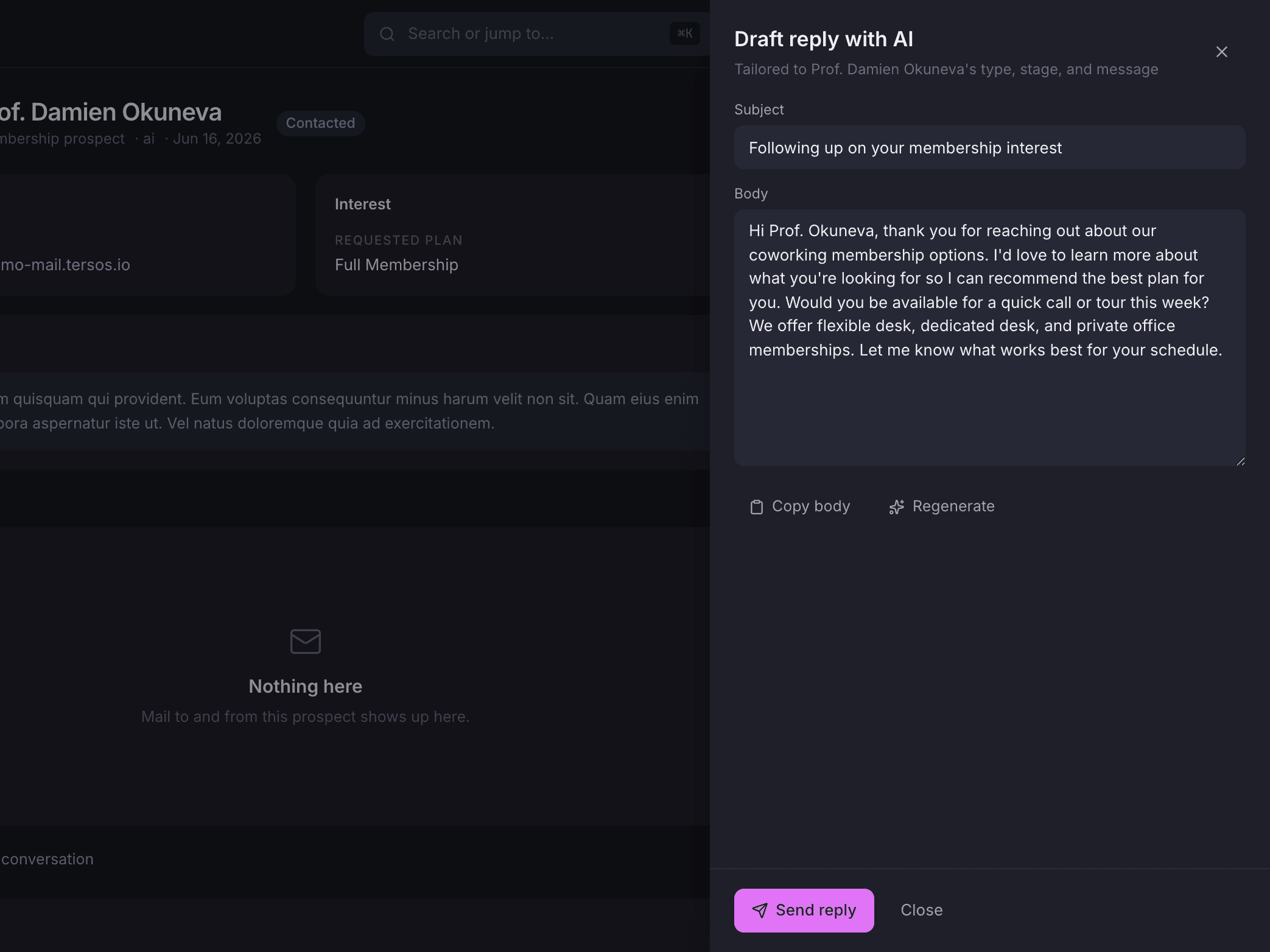
In the shared inbox tersAI suggests which member, prospect or event a thread belongs to, and staff accept or dismiss the suggestion. On a prospect, staff ask for a draft written for that prospect’s type, stage and message, then edit it and send it themselves. tersAI never sends mail on its own.
“Who is a.hodzic@kolektiv.ba? She is asking if the amphitheatre is still free on the 12th.”
tersAI — Amina Hodžić is the contact on the Kolektiv September offsite inquiry, open since March. This thread is not linked to it yet. Link it?
“Yes, and draft a friendly reply confirming the 12th.”
tersAI — Linked. The draft is in the reply panel; edit it and send it from your own mailbox.
a sender looked up, a thread linked and a reply drafted; staff send it
“We don’t have to ask who someone is. The inbox already tells us.”The tershouse team, Sarajevo
Works with